install Apache
# dnf install httpd -y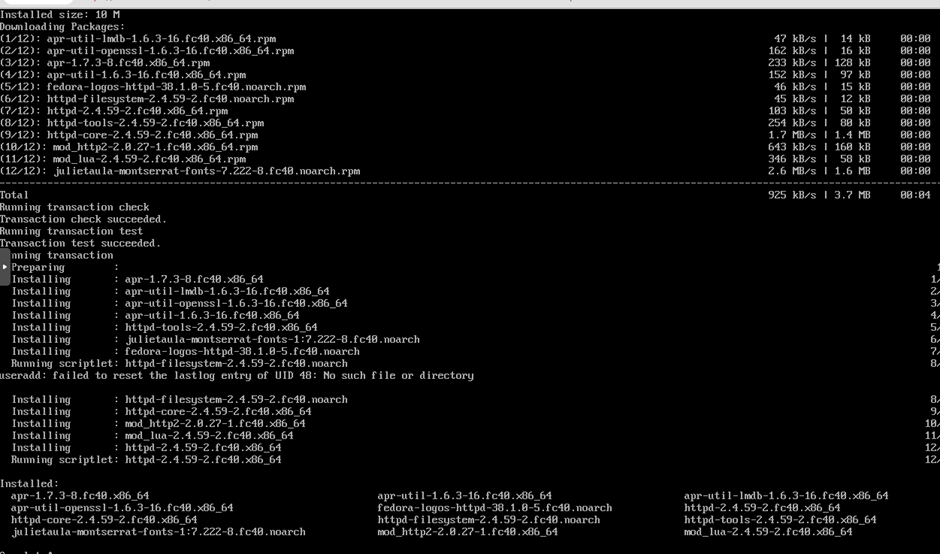
menjalankan apache dan Cek status apache
# systemctl start httpd

# systemctl status httpd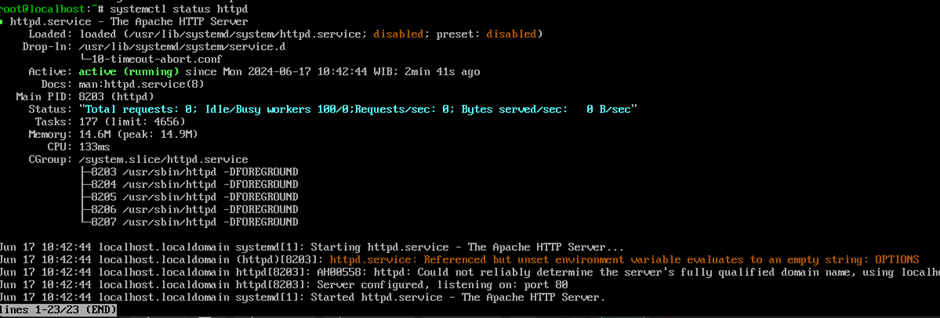
Config Port untuk mengaktifkan port Server http
[root@localhost ~]# firewall-cmd --permanent --add-service=httpConfig Port untuk mengaktifkan port Server http
[root@localhost ~]# firewall-cmd --permanent --add-service=https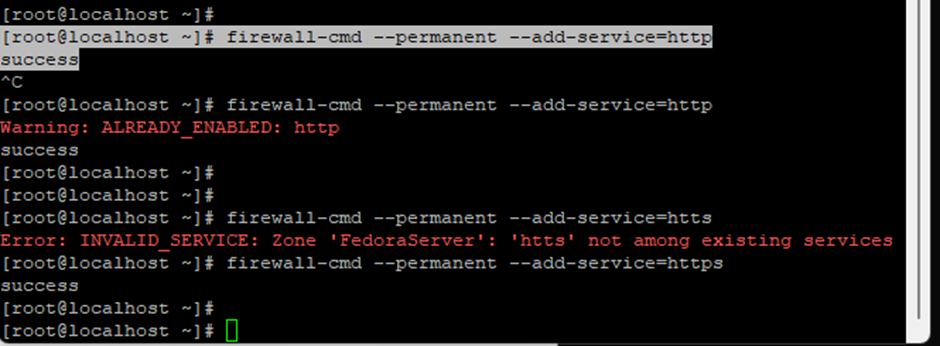
Lalu reload firewall
[root@localhost ~]# firewall-cmd –reload
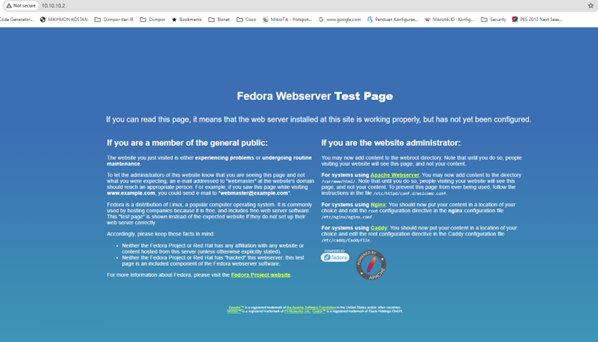
Test di browser
Install MariaDB
[root@localhost ~]# dnf install mariadb-server mariadb -y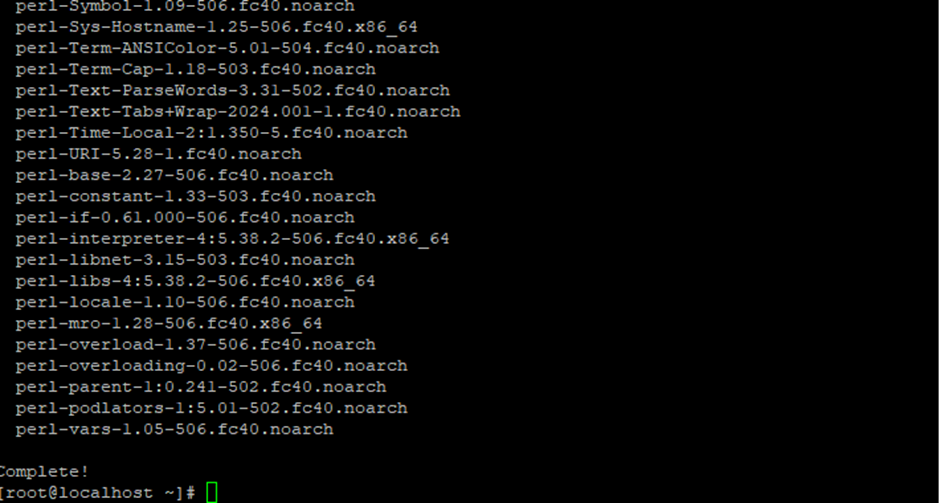
Jalankan MariaDB dan cek statusnya
[root@localhost ~]# systemctl start mariadb

[root@localhost ~]# systemctl status mariadb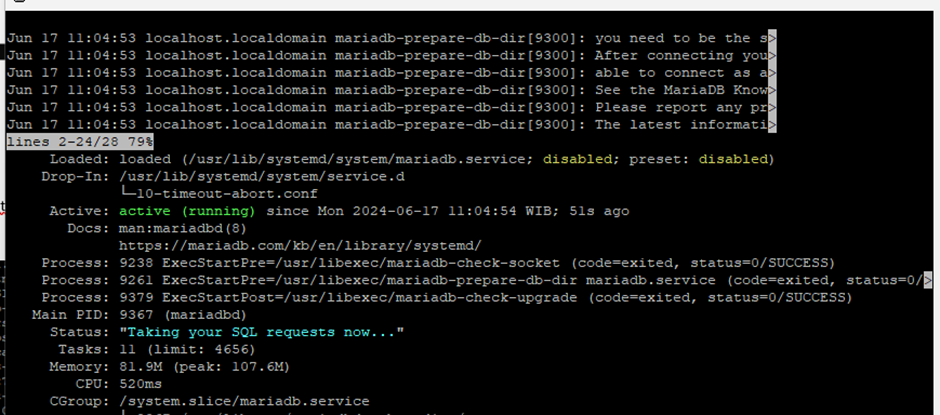
Configurasi MariaDB
[root@localhost ~]# mysql_secure_installation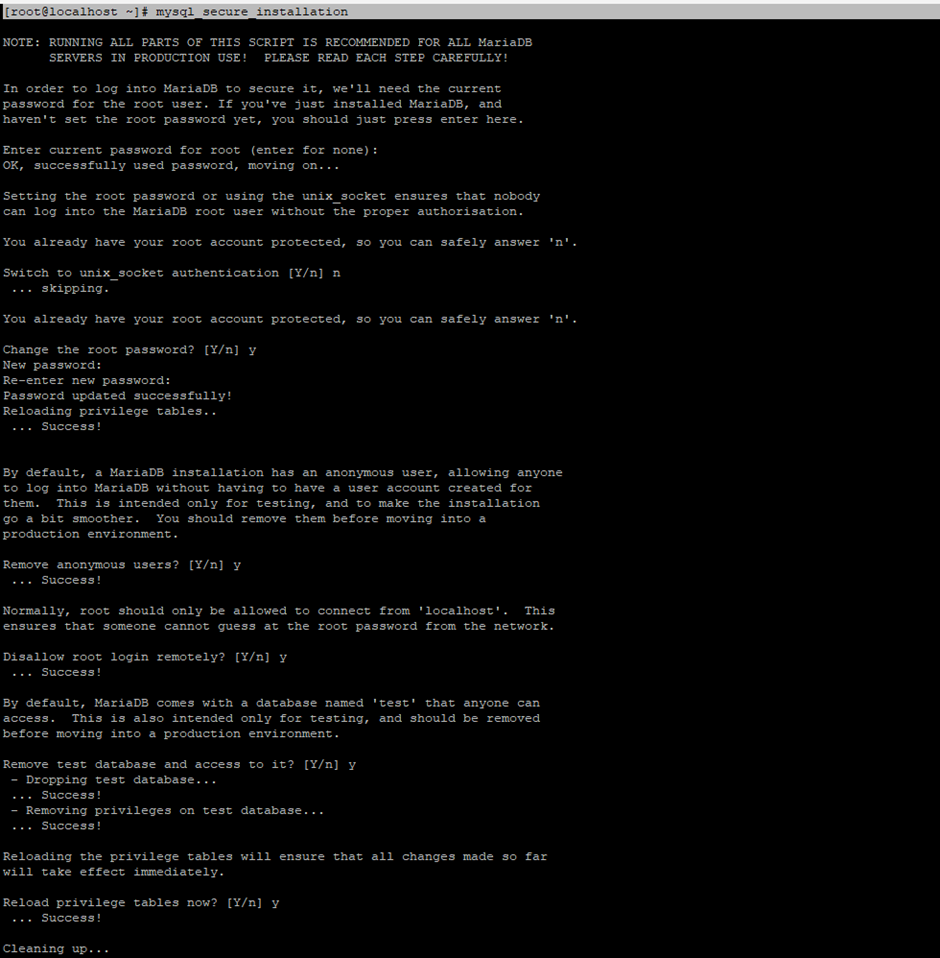
Install PHP
[root@localhost ~]# dnf install php php-common php-cli php-mbstring -y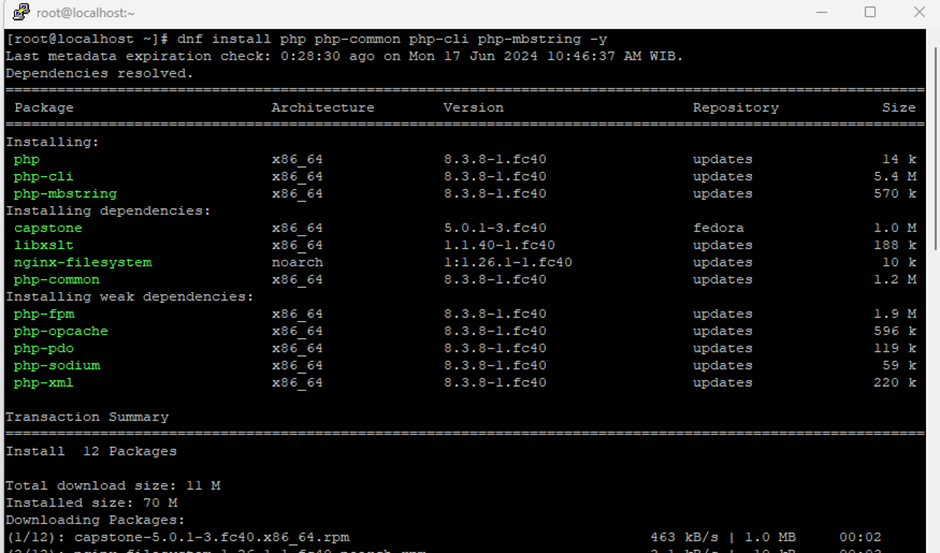
Lalu restart lagi
[root@localhost ~]# systemctl restart httpdUji Test PHP dengan membuat file dengan aplikasi Vi
[root@localhost ~]# vi /var/www/html/test.php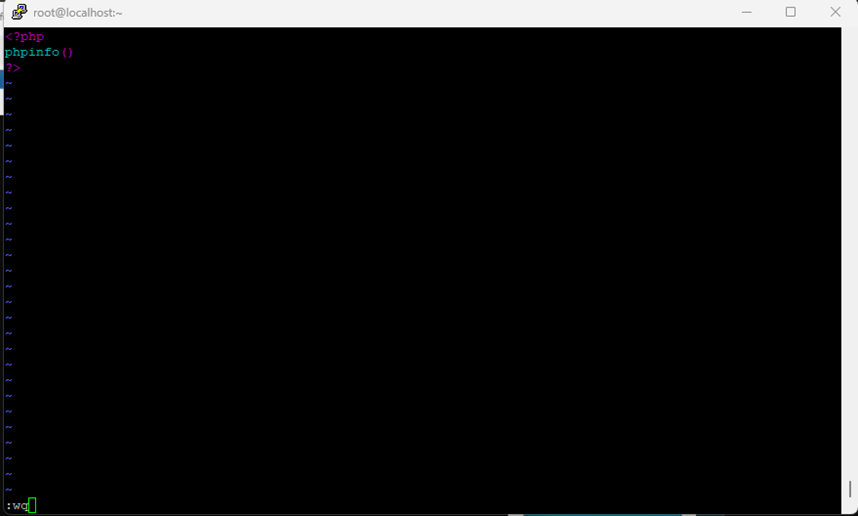
Tombol Ctrl I : untuk menulis/ mengedit
Tombol ESC : untuk berhenti mengedit
Ctrl + titik dua WQ utuk menyimpan dan keluar
Cek di browser
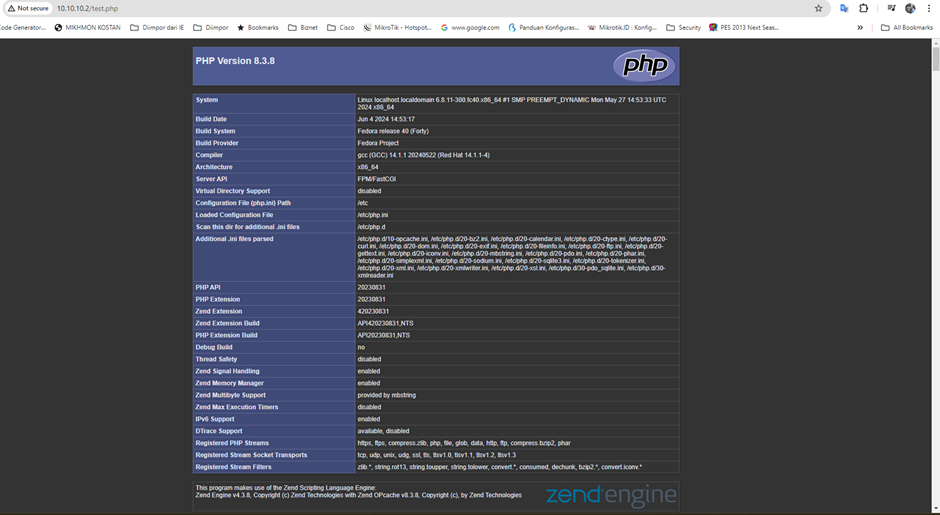
Install PHP MY Admin
[root@localhost ~]# dnf install phpMyAdmin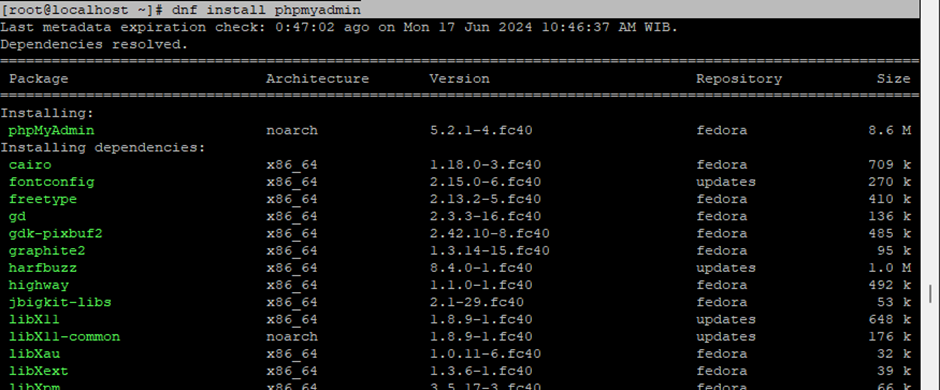
Restart HTTPD
[root@localhost ~]# systemctl restart httpdCek di browser
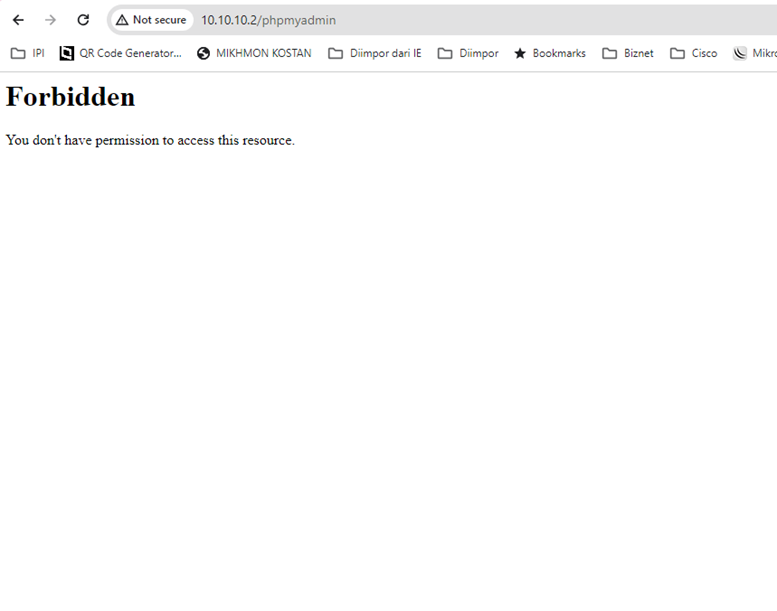
Config untuk menampilkan PHPMyAdmin
Masuk ke dalam config phpMyAdmin
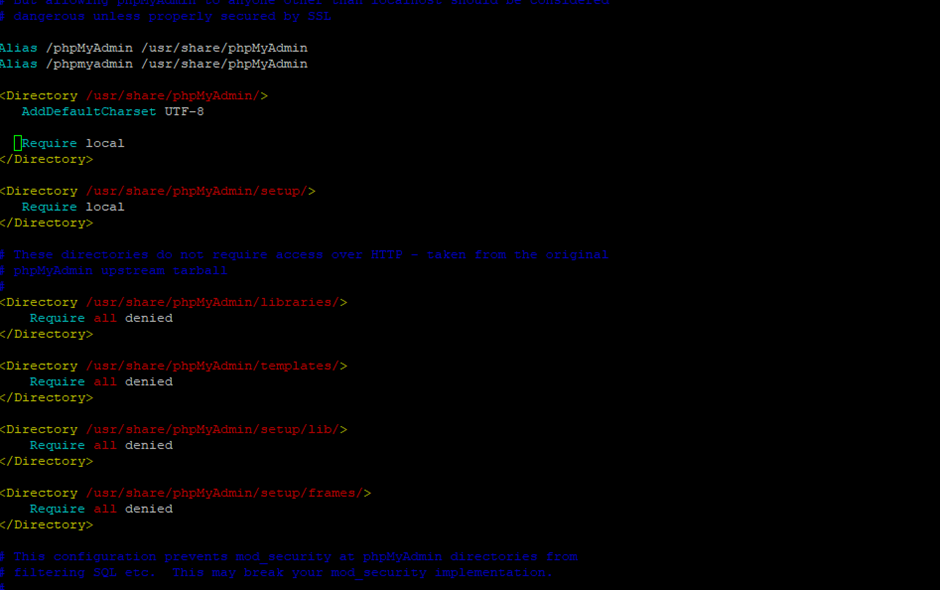
Rubah menjadi
<IfModule mod_authz_core.c>

    <RequireAny>

    Require all granted

   </RequireAny>

   </IfModule>

   #Require local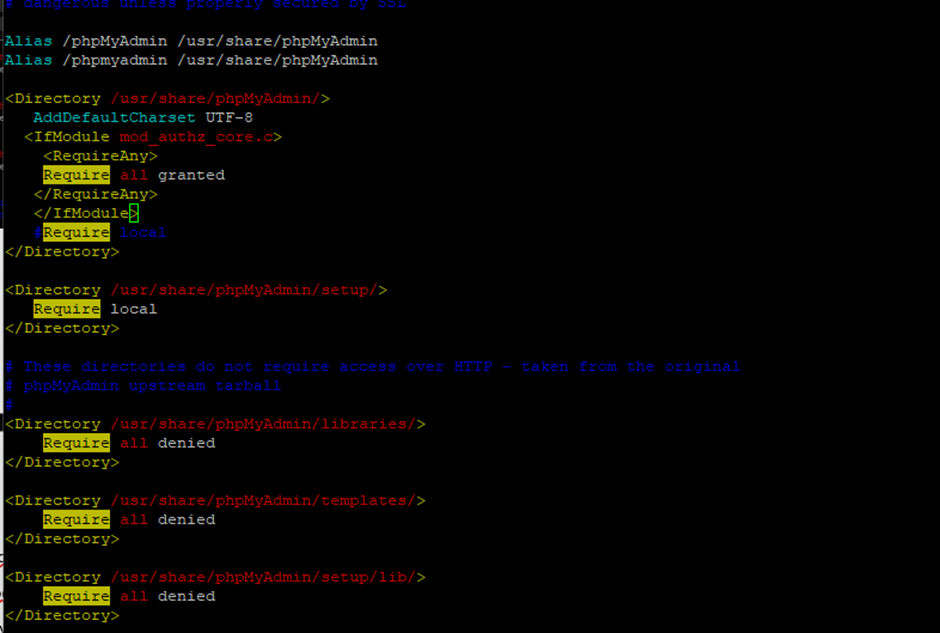
Lalu save
Kembali restart httpd
Lalu cek Kembali di browser
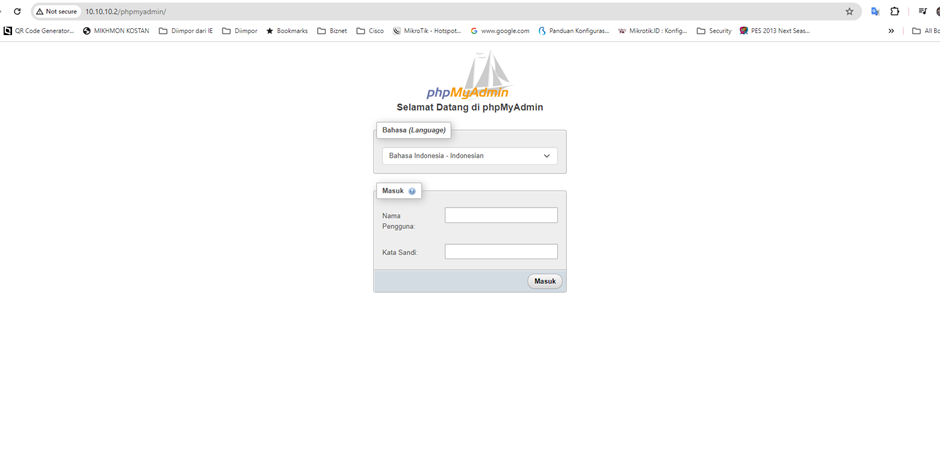
Selesai,,,,
install Webserver LAMPP di Pandora